01-Linux Basics
1. Terminal
Terminal is a command line interface used to interact with the operating system.
1.1. Open the terminal
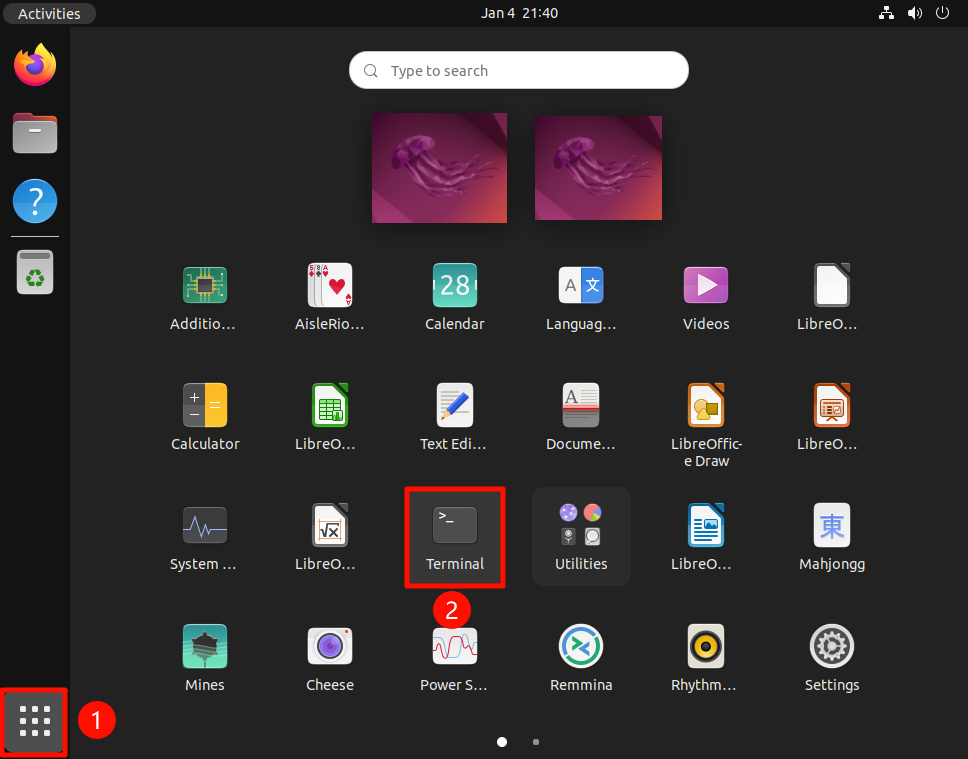
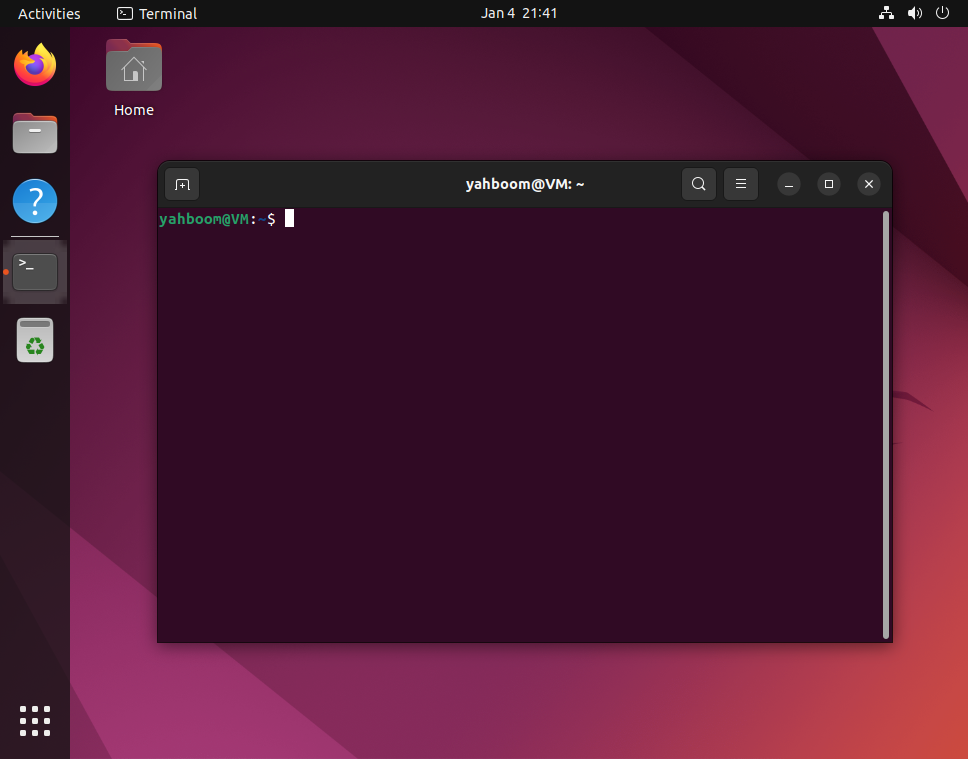
In Ubuntu, you can open it by using the shortcut keys Ctrl + Alt + T or by finding the terminal in the application menu:
1.2. Basic commands
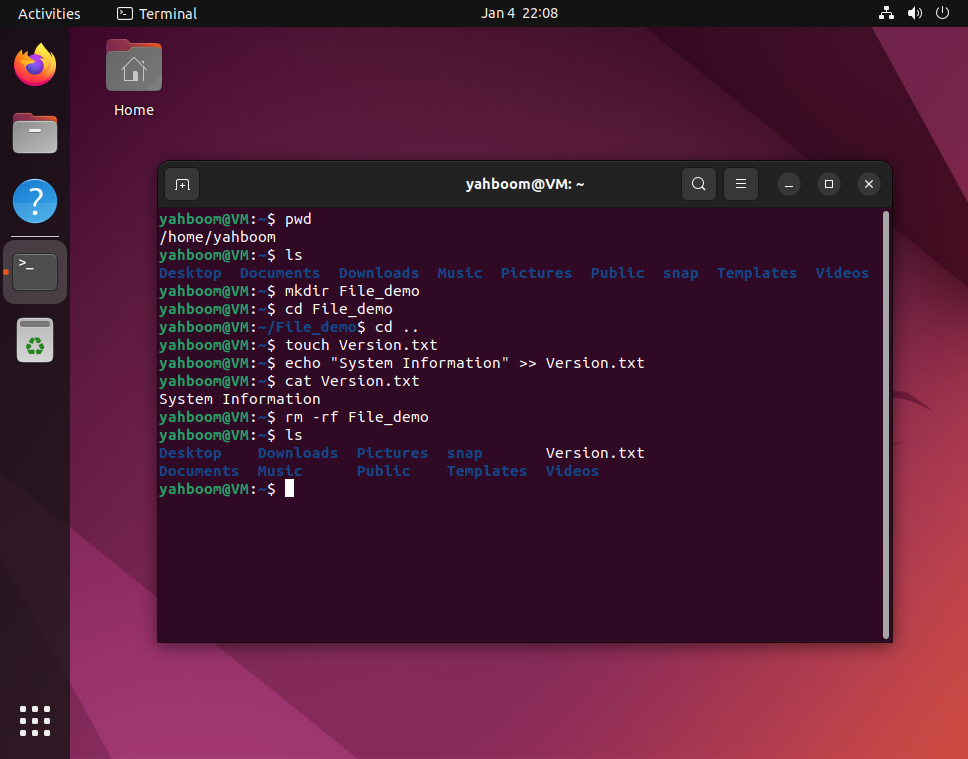
View the current directory
Display the full path of the current working directory:
pwd
pwd
List files/directories
List files and subdirectories in the current directory:
ls
ls
Create a new directory
Create the File_demo directory:
mkdir File_demo
mkdir File_demo
Change directory
Enter File_demo directory:
cd File_demo
cd File_demo
Return to parent directory
cd ..
cd ..
Create new file
Create Version.txt file:
touch Version.txt
touch Version.txt
Modify file
Add System Information to Version.txt file:
echo "System Information" >> Version.txt
echo "System Information" >> Version.txt
View file
View Version.txt file content:
cat Version.txt
cat Version.txt
Delete directory
Delete File_demo directory:
rm -rf File_demo
rm -rf File_demo
1.3. Shortcut keys
Ctrl + C
Terminate the currently running command
Ctrl + Z
Suspend the current process
Tab
Automatically complete the file name or command
2. Text editor
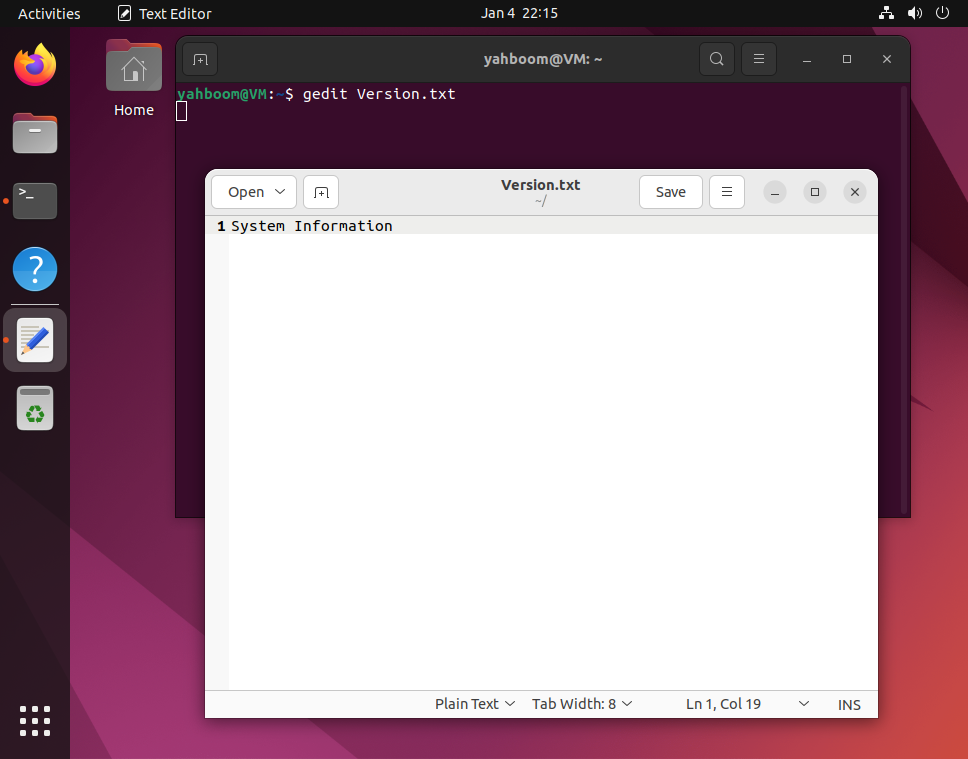
2.1. Gedit (Easy)
The default text editor in the GNOME desktop environment, with a graphical user interface (GUI).
Open file
gedit Version.txt
gedit Version.txt
2.2, Nano (Medium)
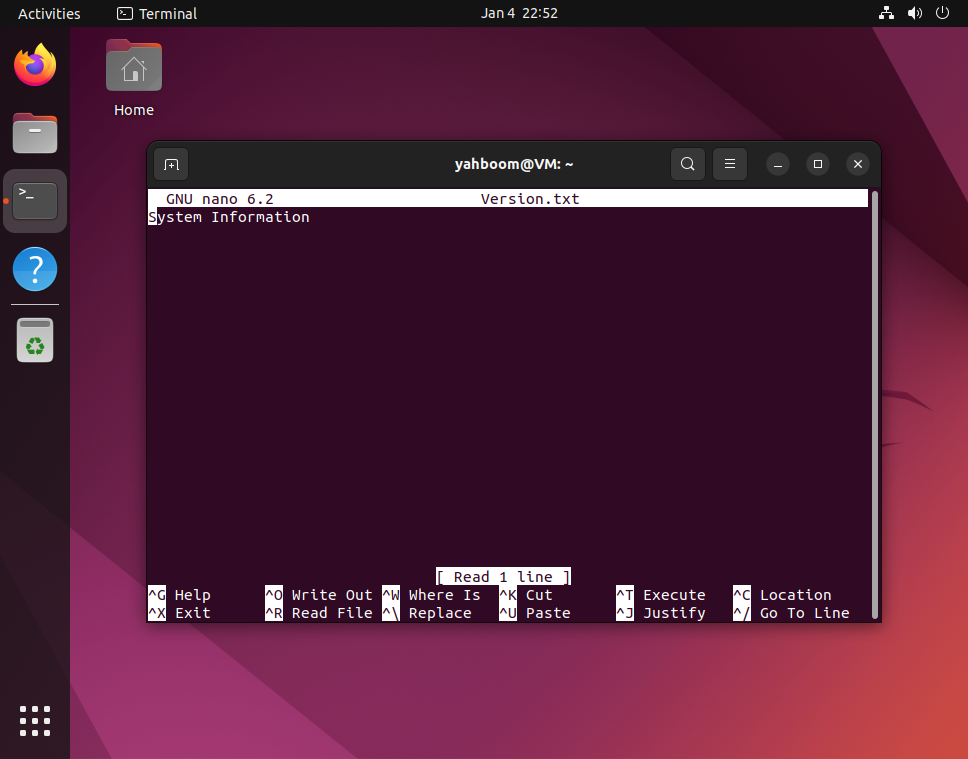
Simple and easy-to-use command line text editor, suitable for beginners.
Install
sudo apt update
sudo apt install nano -y
sudo apt update
sudo apt install nano -y
Open file
nano Version.txt
nano Version.txt
Ctrl + X : Exit (if there are unsaved changes, you will be prompted to save)
Ctrl + U : Paste clipboard contents
Ctrl + W : Search text
2.3, Vi/Vim (difficult)
Vim is an enhanced version of Vi editor, suitable for almost all Unix and Linux systems.
Open file
vi Version.txt
vi Version.txt
Mode
Command mode: default state
Insert mode: press i to enter, press ESC to exit command mode
Last line mode: enter : in command mode, press ESC to exit command mode
Save/Exit
Last line mode
:w : Save file
:q : Exit
:wq : Save and exit
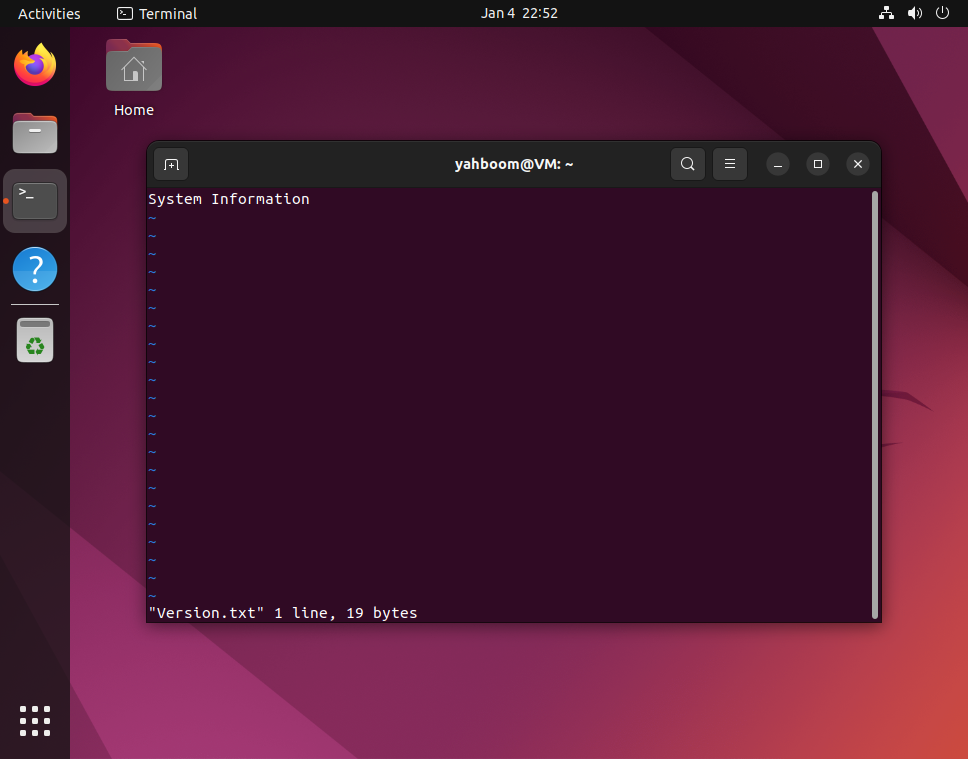
:q! : Force exit without saving